Home
- Details
- Written by: po3dno
- Category: Power Shell
- Hits: 1555
function Get-RandomPassword {
param (
[Parameter(Mandatory)]
[int] $length,
[int] $amountOfNonAlphanumeric = 1
)
Add-Type -AssemblyName 'System.Web'
return [System.Web.Security.Membership]::GeneratePassword($length, $amountOfNonAlphanumeric)
}
"user1
user2" -split "`n" | %{$user = $_; $pwdplain = $(Get-RandomPassword 8); New-ADUser -Name $user -AccountPassword $(ConvertTo-SecureString -String $pwdplain -AsPlainText -Force) -Enabled $true; write-host $user $pwdplain}
- Details
- Written by: po3dno
- Category: Windows
- Hits: 603
When you join a machine to the domain, by default it will be placed in the Computers container under the root of the domain. This can be undesirable, particularly if you want to apply distinct Group Policy to machines when they are initially joined to the domain. Fortunately, Active Directory lets you change the default location for new Computer accounts. The best way to make this change is with the redircmp tool that is included with Windows Server. For example, to redirect new computers in the cohovines.com domain to an Organizational Unit called NewComputers, run this command:
redircmp "OU=NewComputers,DC=cohovines,DC=com"
Under the covers, the redircmp tool updates an attribute of the domain NC head object called wellKnownObjects. The wellKnownObjects attribute contains a list of well known GUIDs and a distinguished name for each GUID. By using GUIDs, the path to an object can be dynamic without the client needing to be aware of anything other than the GUID for the object it is searching for. In this case, the aa312825-7688-11d1-aded-00c04fd8d5cd GUID is how Active Directory keeps track of the default location for new computer objects. You can use a tool like LDP to look at the wellKnownObjects attribute of the domain as shown below:
- Details
- Written by: po3dno
- Category: Windows
- Hits: 552
<#
License terms
This program is free software: you can redistribute it and/or modify it under the terms of the GNU General Public License as published by the Free Software Foundation, either version 3 of the License, or (at your option) any later version.

This program is distributed in the hope that it will be useful, but WITHOUT ANY WARRANTY; without even the implied warranty of MERCHANTABILITY or FITNESS FOR A PARTICULAR PURPOSE. See the GNU General Public License for more details.

You should have received a copy of the GNU General Public License along with this program. If not, see http://www.gnu.org/licenses/.
#>

#get all Shares
$shares    = Get-WmiObject -Class Win32_Share
$shareList = New-Object -TypeName System.Collections.ArrayList

foreach ($share in $shares) {

  #excluding default shares
  if (($share.Name -notmatch '(?im)^[a-z]{1,1}\$') -and ($share.Name -notmatch '(?im)^[admin]{5,5}\$') -and ($share.Name -notmatch '(?im)^[ipc]{3,3}\$') -and ($share.Name -notmatch '(?im)^[print]{5,5}\$') )  {

    $shareAccessInfo = ''
    $ntfsAccessInfo  = ''

    #extract permissions from the current share
    $fileAccessControlList = Get-Acl -Path $($share.Path) | Select-Object -ExpandProperty Access | Select-Object -Property FileSystemRights, AccessControlType, IdentityReference

    #excluding uncritical information as Builtin Accounts as Administratrators, System, NT Service and Trusted installer
    foreach ($fileAccessControlEntry in $fileAccessControlList) {
      if (($fileAccessControlEntry.FileSystemRights -notmatch '\d') -and ($fileAccessControlEntry.IdentityReference -notmatch '(?i)Builtin\\Administrators|NT\sAUTHORITY\\SYSTEM|NT\sSERVICE\\TrustedInstaller')) {
        $ntfsAccessInfo += "$($fileAccessControlEntry.IdentityReference); $($fileAccessControlEntry.AccessControlType); $($fileAccessControlEntry.FileSystemRights)" + ' | '
      }
    } #END foreach ($fileAccessControlEntry in $fileAccessControlList)

    $ntfsAccessInfo = $ntfsAccessInfo.Substring(0,$ntfsAccessInfo.Length - 3)
    $ntfsAccessInfo = $ntfsAccessInfo -replace ',\s?Synchronize',''

    #getting share permissions
    $shareSecuritySetting    = Get-WmiObject -Class Win32_LogicalShareSecuritySetting -Filter "Name='$($share.Name)'"
    $shareSecurityDescriptor = $shareSecuritySetting.GetSecurityDescriptor()
    $shareAcccessControlList = $shareSecurityDescriptor.Descriptor.DACL

    #converting share permissions to be human readable
    foreach($shareAccessControlEntry in $shareAcccessControlList) {

      $trustee    = $($shareAccessControlEntry.Trustee).Name
      $accessMask = $shareAccessControlEntry.AccessMask

      if($shareAccessControlEntry.AceType -eq 0) {
        $accessType = 'Allow'
      } else {
        $accessType = 'Deny'
      }

      if ($accessMask -match '2032127|1245631|1179817') {
        if ($accessMask -eq 2032127) {
          $accessMaskInfo = 'FullControl'
        } elseif ($accessMask -eq 1179817) {
          $accessMaskInfo = 'Read'
        } elseif ($accessMask -eq 1245631) {
          $accessMaskInfo = 'Change'
        } else {
          $accessMaskInfo = 'unknown'
        }
        $shareAccessInfo += "$trustee; $accessType; $accessMaskInfo" + ' | '
      }

    } #END foreach($shareAccessControlEntry in $shareAcccessControlList)


    if ($shareAccessInfo -match '|') {
      $shareAccessInfo = $shareAccessInfo.Substring(0,$shareAccessInfo.Length - 3)
    }

    #putting extracted information together into a custom object
    $myShareHash = @{'Name'=$share.Name}
    $myShareHash.Add('FileSystemSPath',$share.Path )
    $myShareHash.Add('Description',$share.Description)
    $myShareHash.Add('NTFSPermissions',$ntfsAccessInfo)
    $myShareHash.Add('SharePermissions',$shareAccessInfo)
    $myShareObject = New-Object -TypeName PSObject -Property $myShareHash
    $myShareObject.PSObject.TypeNames.Insert(0,'MyShareObject')

    #store the custom object in a list
    $null = $shareList.Add($myShareObject)

  } #END if (($share.Name -notmatch '(?im)^[a-z]{1,1}\$') -and ($share.Name -notmatch '(?im)^[admin]{5,5}\$') -and ($share.Name -notmatch '(?im)^[ipc]{3,3}\$') )

} #END foreach ($share in $shares)

$shareList
- Details
- Written by: po3dno
- Category: Windows
- Hits: 615
Resets the machine account password for the computer.
Syntax
Reset-ComputerMachinePassword
     [-Server <String>]
     [-Credential <PSCredential>]
     [-WhatIf]
     [-Confirm]
     [<CommonParameters>]
Description
The Reset-ComputerMachinePassword cmdlet changes the computer account password that the computers use to authenticate to the domain controllers in the domain. You can use it to reset the password of the local computer.
Examples
Example 1: Reset the password for the local computer
Reset-ComputerMachinePasswordThis command resets the computer password for the local computer. The command runs with the credentials of the current user.
Example 2: Reset the password for the local computer by using a specified domain controller
Reset-ComputerMachinePassword -Server "DC01" -Credential Domain01\Admin01This command resets the computer password of the local computer by using the DC01 domain controller. It uses the Credential parameter to specify a user account that has permission to reset a computer password in the domain.
Example 3: Reset the password on a remote computer
$cred = Get-Credential
Invoke-Command -ComputerName "Server01" -ScriptBlock {Reset-ComputerMachinePassword -Credential $using:cred}
This command uses the Invoke-Command cmdlet to run a Reset-ComputerMachinePassword command on the Server01 remote computer.
For more information about remote commands in Windows PowerShell, see about_Remote and Invoke-Command.
Parameters
-Confirm
Prompts you for confirmation before running the cmdlet.
| Type: | SwitchParameter |
| Aliases: | cf |
| Position: | Named |
| Default value: | False |
| Accept pipeline input: | False |
| Accept wildcard characters: | False |
-Credential
Specifies a user account that has permission to perform this action. The default is the current user.
Type a user name, such as User01 or Domain01\User01, or enter a PSCredential object, such as one generated by the Get-Credential cmdlet. If you type a user name, this cmdlet prompts you for a password.
This parameter was introduced in Windows PowerShell 3.0.
| Type: | PSCredential |
| Position: | Named |
| Default value: | None |
| Accept pipeline input: | False |
| Accept wildcard characters: | False |
-Server
Specifies the name of a domain controller to use when this cmdlet sets the computer account password.
This parameter is optional. If you omit this parameter, a domain controller is chosen to service the command.
| Type: | String |
| Position: | Named |
| Default value: | None |
| Accept pipeline input: | False |
| Accept wildcard characters: | False |
-WhatIf
Shows what would happen if the cmdlet runs. The cmdlet is not run.
| Type: | SwitchParameter |
| Aliases: | wi |
| Position: | Named |
| Default value: | False |
| Accept pipeline input: | False |
| Accept wildcard characters: | False |
- Details
- Written by: po3dno
- Category: Windows
- Hits: 573
В таких случаях, системный администратор обычно просто заново включал вылетевший компьютер в домен. Но для этого компьютер нужно перезагружать. Мне захотелось найти альтернативу такому решению, и как оказалось, оно существует. Для этого можно воспользоваться Powershell.
- Откройте консоль PowerShell
- Введите команду
Test-ComputerSecureChannel
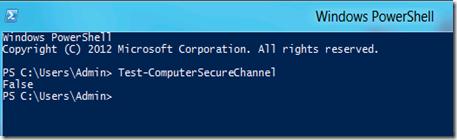
- Если в ответ мы получим False, это означает что невозможно установить безопасный канал между клиентом и контроллером домена. А т.к. не устанавливается безопасный канал, то и залогинится с доменной учетной записью нельзя.
- Чтобы сбросить и синхронизировать пароль компьютера в домене, воспользуемся командой
Test-ComputerSecureChannel –Credential -Repair
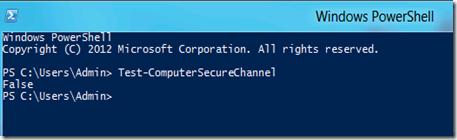
- В появившемся окне введите имя пользователя, которому разрешено управлять учетной записью компьютера в домене и его пароль
- После чего еще раз проверим возможность установки безопасного канала первой командой, если все получилось, она вернет True
- Осталось выйти из системы и зайти под доменной учетной записью